

Getting Started with Text Generation Tools
Learn the three most useful prompts for writing emails, summaries, and everyday tasks with neural networks.

July 2026 • 8 min read • Beginner
Author
Written by the kohsson editorial team, focused on practical, clear guidance for using AI tools in daily life.
Neural networks have changed how we edit photos. It's not just about filters anymore — we're talking about real improvements. Upscaling blurry shots. Removing unwanted objects. Fixing lighting that went wrong. These tools work because they've learned patterns from millions of images.
The best part? You don't need to be a Photoshop expert. Most of these tools are designed for people who just want their photos to look better without spending hours learning software. Let's walk through what's actually possible and how to use these tools effectively.
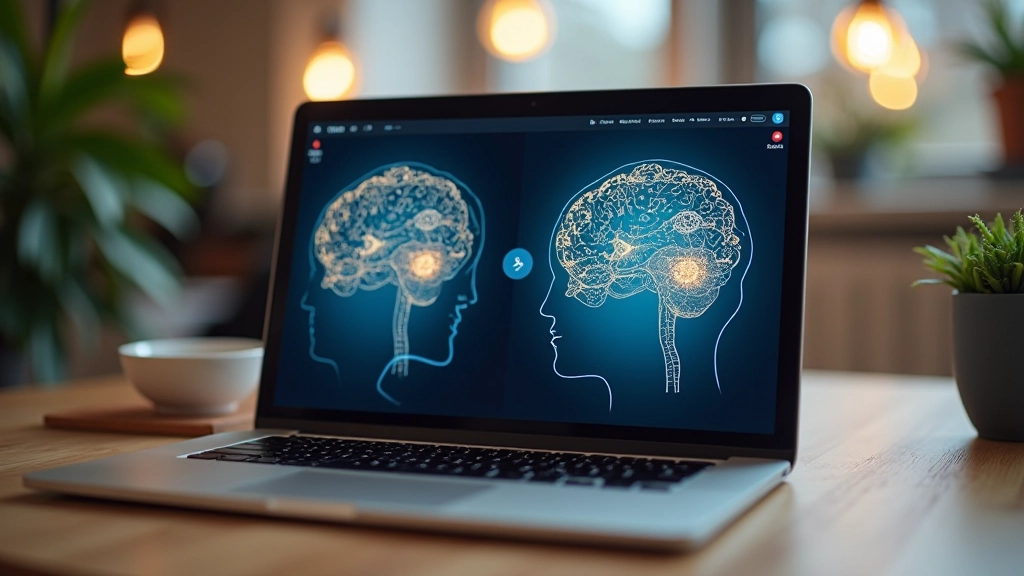
Upscaling is probably the most popular AI photo tool right now. You've taken a photo on your phone, and now you want to print it or use it on a website. But the resolution isn't quite there. Traditional upscaling just stretches pixels and everything looks soft and blurry.
Neural networks do something different. They analyze the existing image and figure out what details should fill in those extra pixels. It's not perfect, but it's genuinely impressive. A 2-megapixel photo can become 8 megapixels. You're not adding fake information — the AI is making educated guesses based on patterns it's learned.
Here's what works best: Start with decent source material. A blurry original won't magically become sharp. But a reasonably clear photo upscaled 2-4x? That actually looks good. Most tools let you choose the upscaling factor — 2x, 3x, or 4x. Start with 2x if you're not sure.
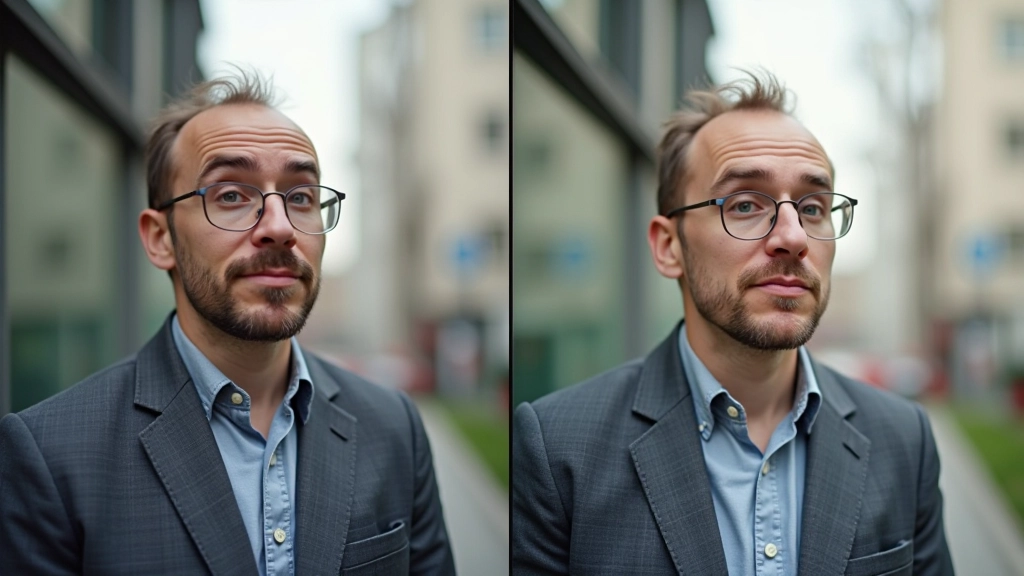
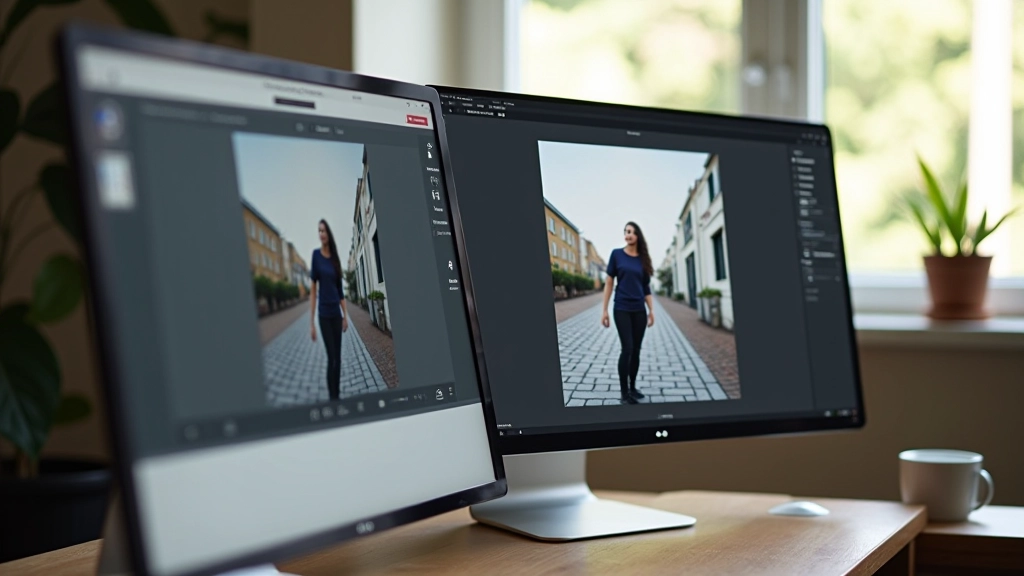
You've got the perfect shot. Except there's a trash can in the background. Or a person you don't want in the frame. AI removal tools can actually fix this. You paint over the thing you want gone, and the neural network fills in what should be there instead.
This is where things get genuinely useful. The tool looks at the surrounding area and makes an intelligent guess about what belongs there. For simple cases — a small object against a plain background — it works nearly flawlessly. For complex situations, results vary.
The technique matters. Don't try to remove something huge. Stick to smaller objects. And make sure the background you want to keep is relatively consistent. A trash can against grass? Easy. That same trash can in a crowded street? Much harder. The tool will struggle because there's too much variation in what could belong in that space.
Educational note: This guide covers practical techniques for using AI photo tools. Results vary based on image quality, tool settings, and subject matter. Always use these tools responsibly — don't create misleading images of people or events. These are tools for improvement and creative work, not deception.
Some photos look dull because the lighting was off. Too dark. Too warm. Weird color cast from artificial light. You could spend time in Photoshop adjusting curves and levels. Or you could use an AI tool that does it automatically.
These tools analyze the image and adjust exposure, contrast, and color temperature intelligently. They're not just applying a filter — they're making decisions based on what the image contains. A face gets properly exposed. The sky doesn't blow out. Shadows don't get crushed to black.
The results aren't always perfect, but they're a solid starting point. And honestly, that's the appeal. You spend 30 seconds instead of 30 minutes. If you need fine-tuning, you can always adjust further. But most photos come out looking noticeably better.
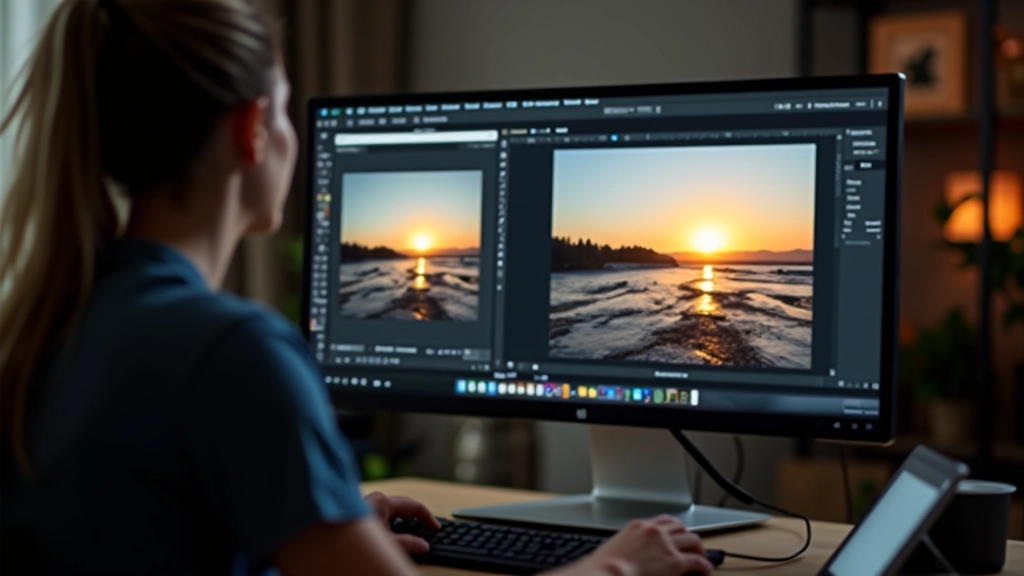
Here's how most people actually use these tools. You've got a batch of photos from a weekend trip. Some are out of focus. Others are underexposed. A few have distracting elements in the background.
Start by filtering. Which photos are worth saving? Don't waste time enhancing images that are already unsalvageable. Then prioritize. Maybe upscale 3-4 shots you really love. Remove objects from 1-2 images. Run the lighting fix on everything that needs it. Most tools let you batch process, so you're not doing this one by one.
The workflow saves time because you're not overthinking each decision. Use the tool for what it does best. If it works, great. If the result looks off, undo and move on. Don't try to fix everything with AI — sometimes a quick manual adjustment is faster. The goal is getting good photos, not learning to trust the AI perfectly.
AI photo tools aren't magic, but they're genuinely useful. Upscaling works. Object removal works. Lighting fixes work. You're not going to replace a photographer or a skilled retoucher, but you don't need to. These tools are for people who want their photos to look better without becoming experts.
The best approach? Try them. Most tools offer free trials or limited free versions. Spend 30 minutes testing on your actual photos. You'll quickly figure out what's worth using and what doesn't work for your situation. The tools keep improving, and there are new options showing up regularly. But the fundamentals won't change — neural networks are genuinely good at spotting patterns in images and making intelligent adjustments.
If you're taking photos seriously, even just for social media or printing, these tools are worth having in your toolkit. They'll save you time, and they'll make your photos better. That's really all you need to know.
Learn the three most useful prompts for writing emails, summaries, and everyday tasks with neural networks.
Combine text and image tools into workflows. Automate tasks like document formatting and photo batching.

Neural networks aren't perfect. Learn practical techniques to spot errors, verify information, and catch mistakes.